
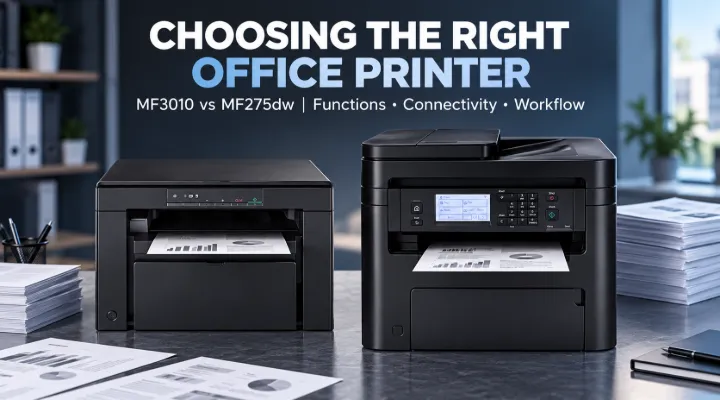
Small offices often need dependable printing, copying and scanning without the complexity of a large departmental machine. ICTECH Distribution's recent Canon additions include i-SENSYS MF275dw, listed as 5621C001AA, and MF3010, listed as 5252B004AB. Both belong in a discussion about monochrome document workflows, but they serve different connection and handling requirements. A useful comparison begins with how documents move through the office rather than the lowest purchase price.
The MF3010 listing describes print, copy and scan functions with USB connectivity. The MF275dw is presented as a four-function model with printing, scanning, copying and fax, together with network and wireless connection options. Canon's own MF275dw information identifies monochrome laser printing. This matters because a conflicting colour field in a catalogue should not cause a buyer to expect colour document output from a monochrome model.
Count the people and document tasks
Start with the number of users and where they work. A printer connected to one nearby computer can meet a different need from a device shared by several people across a network. Record how often staff print, copy and scan, and whether they handle multi-page originals. These details reveal which functions reduce daily effort and which add little value to the intended workflow.
Also identify document characteristics. Contracts, invoices, shipping records and internal notes can have different paper-handling needs. If colour output is essential for any regular task, recognise that requirement before choosing between monochrome models. The right device should cover the normal workload reliably, while occasional tasks outside its role can be assigned to another printer or service.
Understand the MF3010 starting point
The supplied MF3010 specification describes a monochrome laser all-in-one with print, copy and scan functions, USB 2.0 connectivity and a listed A4 speed of up to 18 pages per minute. These details make it relevant to a locally connected document workflow. Verify driver support for the intended computer and operating system before purchase, especially when replacing a device attached to an older workstation.
Do not assume that a USB printer automatically offers every shared-office convenience. If several users need access, evaluate the actual arrangement and its support implications. Check how documents are scanned and where files are saved. A straightforward local setup can be suitable when its limitations match the requirement, but it should not be chosen on the assumption that missing network functions can be ignored indefinitely.
Understand the MF275dw feature direction
The MF275dw is listed with print, copy, scan and fax functions and USB, network and wireless connectivity. Canon's model information also describes automatic duplex printing and an automatic document feeder. These features can be relevant when several users share the printer or staff regularly handle multi-page documents. Confirm the precise regional package and supported functions for 5621C001AA.
Keep different automation features separate. An automatic document feeder does not by itself prove every form of automatic two-sided scanning. A duplex-printing feature describes printed output, not all scanning or copying modes. Ask the supplier to demonstrate the exact multi-page and two-sided tasks the office needs so the purchase is based on supported workflows rather than a broad interpretation of feature names.
Keep monochrome output and colour scanning distinct
A monochrome laser printer produces black-and-white document output. It may still capture colour information when scanning, depending on the model and settings. These are different capabilities. Explain the requirement clearly when requesting a quotation: colour scanning for electronic records does not mean colour printing, and a catalogue field labelled colour can be ambiguous if read without context.
Use sample documents during evaluation. Print a report containing text, diagrams and shaded areas to check whether monochrome output communicates the information adequately. For scanning, assess the resulting files using the intended application and settings. This practical review helps the office distinguish an acceptable document workflow from one that would need a separate colour device.
Compare connectivity as an operating decision
For a local USB arrangement, identify the host computer, cable route and responsibility for the device. For networked use, involve whoever manages the office network. Confirm supported wired or wireless setup, device naming and the process for adding users. A printer can be technically connected while still being inconvenient if staff cannot find it or scan files to the expected location.
Test with the actual computers and mobile workflows that matter. Do not infer support for every application or operating system from the presence of Wi-Fi. Record the approved installation method and keep administrative details with the office's support records. A consistent setup reduces the time spent resolving driver mismatches or discovering that a new laptop has been configured differently from the others.
Evaluate document handling directly
Try a representative set of originals and paper types within the supported specifications. Check how staff load paper, select copy settings and retrieve finished pages. If multi-page scanning is common, time the complete process from placing the original to obtaining a usable file. This reveals whether handling features save meaningful effort or whether another part of the workflow remains the main bottleneck.
Also check the distinction between simplex and duplex tasks. A staff member may expect a two-sided original to become a two-sided copy automatically, while the device supports only part of that sequence. Make the required behaviour explicit and demonstrate it. Clear expectations prevent disappointment after installation and help the team write useful everyday instructions.
Review speed with realistic conditions
Pages-per-minute figures describe defined test conditions. Actual completion time also includes waking the device, preparing the job, processing the file and handling the result. A short invoice and a large scanned document can behave differently. Compare the tasks the office performs rather than using one speed figure as a universal measure of productivity.
For low-volume use, first-page behaviour and ease of operation may matter more than a higher continuous-print rating. For repeated multi-page work, paper handling and shared access can become more important. A short trial with normal documents helps place the specifications in context and makes it easier to justify the features that are worth paying for.
Calculate consumables and service requirements
Identify the compatible toner for each exact model and the starter consumables included with the purchase. Rated yields depend on stated testing conditions and should not be treated as a guarantee for every document mix. Ask about replacement pack options and availability. A lower printer price can be less attractive if the chosen model makes routine replenishment inconvenient for the office.
Separate maximum duty-cycle figures from a recommended everyday workload. The MF3010 listing includes a maximum monthly figure, but that is not automatically the ideal sustained monthly target. Ask for model-specific workload guidance and service coverage. Keep the purchase code, compatible consumables and support process in the office records so the device remains straightforward to maintain.
Prepare installation and information handling
Choose a location with enough space for supported paper paths, access and ventilation. Include the working footprint with trays and covers open, not only the closed-body dimensions. Place the machine where staff can collect documents without disrupting nearby work. Confirm power and connectivity before delivery so installation does not depend on last-minute cabling decisions.
For shared use, decide who changes settings and how scanned files are stored. Sensitive documents should follow the organisation's normal handling policy. Clear naming, user instructions and a defined support contact can prevent many routine issues. The objective is a document process that staff can repeat confidently, from selecting the printer to finding the finished electronic or paper result.
Prepare a Canon office-printer enquiry
Send ICTECH Distribution the user count, monthly document pattern, connection requirements and examples of common scanning or copying tasks. State whether automatic duplex printing, document feeding and fax are required. Ask for separate MF275dw and MF3010 proposals where both remain plausible, with consumables, setup and service coverage included.
The final choice should reflect how the office works. A local three-function workflow and a shared four-function workflow can justify different devices even when both produce monochrome documents. A clear requirement, task-based demonstration and complete quotation make that difference understandable and help the buyer avoid paying for unused functions or accepting limitations that create daily friction.
Frequently asked questions
Is MF275dw a colour laser printer?
Canon identifies it as a monochrome laser model. Colour scanning capability, where supported, should not be confused with colour printed output.
What functions are listed for MF3010?
The supplied entry describes printing, copying and scanning, with USB connectivity. Confirm driver support for the intended host computer.
Does an ADF guarantee automatic duplex scanning?
No. Document feeding, duplex printing and duplex scanning are separate capabilities. Demonstrate the exact task required.
Should maximum duty cycle be used as the normal workload target?
No. Ask for the recommended usage guidance and service scope appropriate to the model and the office's expected workload.
What makes the most useful comparison?
Use the same real documents and connection requirements, then compare complete costs including toner, setup, paper handling and support.
Products covered and enquiries
Canon i-SENSYS MF275dw 4-in-1 Laser Printer 5621C001AA | Canon i-SENSYS MF3010 5252B004AB Monochrome Laser Multifunction Printer
Contact ICTECH Distribution with the exact model codes, intended use and required configuration for an itemised enquiry.
Product configuration reference: ICTECH Distribution catalogue entries supplied for this article. Confirm the exact regional configuration and package in the final quotation.
Manufacturer reference: Model information 1 | Model information 2.
