
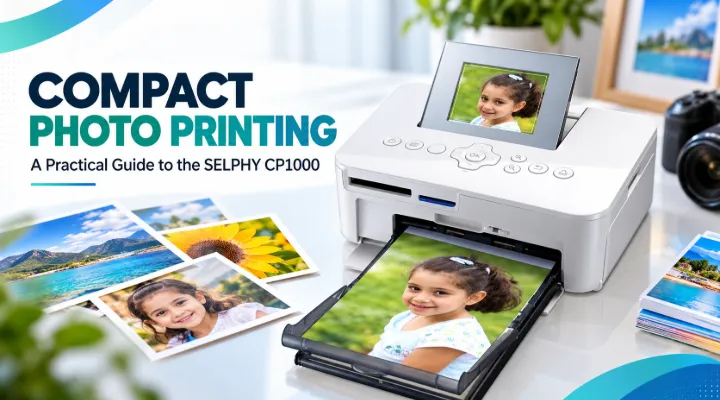
Printed photographs still serve a different purpose from images stored on a phone or shared online. They can become keepsakes, presentation material or part of a controlled customer workflow. The Canon SELPHY CP1000, listed by ICTECH Distribution as 0077C008AA, is a compact dye-sublimation photo printer designed around that kind of output. Its suitability depends on the intended print sizes, source devices, media supply and operating routine rather than a direct comparison with an office document printer.
The supplied catalogue describes 300 x 300 dpi printing with colour gradation, an overcoating process and a tilt-up colour screen. Those details provide a starting point for evaluating photo output and standalone operation. Before purchase, decide who will use the printer, where images originate and how many prints are needed in a normal session. A small workflow review can prevent a convenient compact device from being assigned work outside its intended role.
Separate photo printing from office printing
The CP1000 should be evaluated as a dedicated compact photo printer. It is not a replacement for a shared A4 office machine handling reports, invoices and large document batches. Its media system and output format address a different need. Begin with the photographs and finished sizes required, then confirm the supported media and accessories for that exact output.
This distinction also improves cost comparisons. An office printer's page rating and a photo printer's image workflow describe different tasks. Compare the cost and convenience of producing the intended finished photograph, including consumables and handling. A device can be well suited to occasional personalised prints even when a different service or printer type would be more appropriate for large-volume production.
Understand the listed print process
The supplied information describes dye-sublimation thermal transfer with overcoating. Rather than choosing from resolution alone, evaluate actual photographs containing skin tones, gradients, fine detail and dark areas. A numeric dpi figure does not capture every aspect of photo appearance. The source image, chosen settings and media also influence the finished result.
Ask to see output from the supported consumables intended for the purchase. Judge it under the lighting where the prints will normally be viewed. If a particular application has formal image requirements, verify those independently. A pleasing general-purpose photograph does not automatically establish compliance with every document, identification or professional colour requirement the buyer might later encounter.
Match the media and consumables
Confirm the supported paper and ink cassette combinations for the CP1000 and the intended print size. These consumables form part of the printing system, so generic office paper is not a substitute. Ask what is included in the box and which packs must be purchased separately. A quotation should provide enough information to begin printing rather than only naming the printer chassis.
Plan consumable quantities around real use. Occasional family printing, a reception desk and an event each have different stock requirements. Store materials according to the manufacturer guidance and keep track of what is available before a planned session. A compact printer's convenience depends partly on having the correct consumables ready when someone needs a physical copy.
Review image sources and interfaces
The catalogue mentions Hi-Speed USB and PictBridge direct printing. Canon's documentation also provides the supported media and connection details. Map the actual source devices before purchase: a computer, compatible camera or supported removable media. Do not assume that a device offers wireless phone printing simply because many newer photo products do. Confirm the CP1000's exact supported connection path for each intended source.
Test with representative files and the actual device model where possible. File formats, storage media and software support can influence whether an image is available for printing. If a computer is involved, confirm driver availability for the intended operating system. A clear source-to-print procedure is more useful than a broad statement that the printer connects through USB.
Use the screen and controls in a real session
The supplied specification identifies a 2.7-inch tilt-up colour screen. Evaluate how users select an image, choose settings and confirm output. A small screen can support a convenient standalone routine, but it should not be expected to replace a larger editing display for detailed corrections. Decide which adjustments happen before the file reaches the printer and which are part of the printing session.
For shared use, provide a short instruction sheet with the approved media and source method. Test common mistakes, such as selecting the wrong image or running out of consumables. A device is easier to operate when users know how to recover from ordinary interruptions. This matters particularly where someone prints only occasionally and cannot be expected to remember every control.
Prepare images for the intended print
Start with a suitable source file rather than relying on the printer to correct every issue. Check crop, orientation and important details near the edges. The aspect ratio of the image may differ from the selected media, so review the preview and supported layout settings. A photograph that looks right on a phone can lose important content when fitted to a different shape.
If colour consistency matters, establish a controlled preparation process and test output from representative files. Screens and prints are viewed differently, and display brightness can affect expectations. Avoid promising an exact visual match without a validated workflow. For routine keepsakes, the goal may simply be clear, pleasing output; professional requirements need a more specific standard and acceptance method.
Plan the physical printing area
The catalogue lists a compact body of approximately 178 x 135 x 60.5 mm and an approximate weight of 840 g. Those figures describe the unit, not necessarily the full working footprint. Allow the clearances required by the manufacturer's paper-handling process and leave room for the media supply, output and connected devices. Do not place the printer tightly against surrounding objects without checking the operating guidance.
Choose a stable, clean surface with practical access to power. If the printer will be moved, plan how it and its consumables are carried and stored. The small form factor can be convenient, but portability does not automatically imply that every power accessory is included. Confirm any battery or alternative power arrangement separately before planning use away from a normal outlet.
Estimate throughput around the whole task
For a session with several users, printing time is only part of the workflow. Image selection, cropping, transferring files and replenishing media can take significant time. Test a realistic sequence with the expected number of prints. A manufacturer's print-time specification, where provided, should be read with its stated conditions rather than treated as the completion time for every customer interaction.
If a queue is likely, decide how files are named and how finished prints are matched to their owners. Keep personal image handling consistent with the organisation's policies. This makes a small printer easier to use in a reception or event setting and avoids turning image selection or file management into the main bottleneck after the hardware has been purchased.
Consider running costs and support
Calculate consumable cost per intended print using the actual compatible pack quantities. Include any media cassettes, cables or accessories needed for the chosen workflow. Avoid comparing only the initial printer price when consumable availability will determine ongoing convenience. Ask ICTECH Distribution about the compatible supplies and expected replenishment arrangements for the location where the printer will be used.
Also confirm regional warranty and support coverage for 0077C008AA. Keep the product code and purchase record with the operating instructions. If the printer depends on a particular computer or software setup, document that arrangement so it can be recreated after a system change. These small records can prevent unnecessary replacement when the problem is an altered source device or missing connection component.
Prepare a CP1000 enquiry
Send ICTECH Distribution the intended photo sizes, source devices, expected print quantities and whether use will be stationary or mobile. Request the printer, compatible consumables, required cassettes and connection accessories as a complete package. Ask for a sample-output review if image appearance is an important purchasing condition.
The CP1000 is most useful when the buyer understands the path from image to finished photograph. That includes preparation, supported connections, consumables and routine operation. A short practical test can confirm whether the compact format fits the need and provide users with a repeatable method for producing the physical prints they actually want.
Frequently asked questions
Is SELPHY CP1000 an ordinary A4 office printer?
No. Evaluate it as a compact dedicated photo printer using its supported media system and print formats.
Does the catalogue establish wireless phone printing?
No. Confirm the exact source and connection method. The supplied entry mentions USB and PictBridge, so do not infer wireless features from other products.
Can ordinary paper replace the compatible photo media?
Use the consumables and cassette combinations supported for the model. Confirm compatible packs and required accessories before ordering.
Does compact size mean it needs no operating clearance?
No. Follow the manufacturer guidance for paper movement and access. The body dimensions are not necessarily the complete working footprint.
What should be included in a quotation?
Specify the printer code, intended print sizes, compatible consumables, required cassettes, connection accessories and any separately required power options.
Products covered and enquiries
Canon SELPHY CP1000 Compact Photo Printer 0077C008AA Dye-Sublimation 300x300 dpi
Contact ICTECH Distribution with the exact model codes, intended use and required configuration for an itemised enquiry.
Product configuration reference: ICTECH Distribution catalogue entries supplied for this article. Confirm the exact regional configuration and package in the final quotation.
Manufacturer reference: Model information 1 | Model information 2.
