
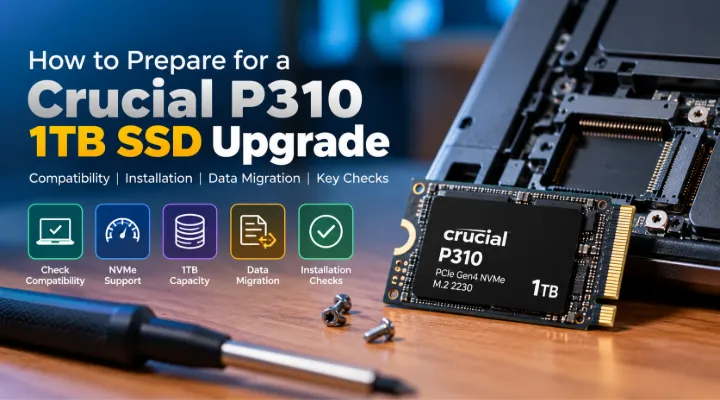
An SSD upgrade starts with compatibility, even when the product's capacity and performance description look attractive. The Crucial P310 CT1000P310SSD2 is a recent ICTECH catalogue addition in the compact M.2 2230 format. That format is the first detail to verify before considering it for a laptop, handheld device or other supported system. This guide explains how to prepare a storage upgrade around the exact product reference. It focuses on fit, supported interfaces, data migration and acceptance checks rather than assuming that every M.2 slot accepts the same drive. A careful brief helps buyers avoid ordering a component that cannot be installed in the intended device.
Identify the exact P310 variant
ICTECH lists CT1000P310SSD2 as a 1TB PCIe Gen4 NVMe SSD in M.2 2230 format. Crucial's P310 2230 documentation provides the product family reference and describes the compact drive's intended compatibility context. Keep the full part number on the quotation and purchase order. The P310 name by itself is not enough to identify every form factor or capacity variant. Confirm the supplied product rather than relying on a similar looking listing. This is useful when a purchasing team is ordering several storage upgrades, because a one character difference in a part reference can represent a different product that should not be substituted without checking.
Verify the device's supported drive format
Find the device manufacturer's service or upgrade documentation and identify the supported storage dimensions. The 2230 designation describes a shorter module than common 2280 drives. Check the mounting position and any model specific requirements. Do not assume that a longer slot or a familiar connector automatically provides an approved installation for the shorter drive. If documentation is unclear, ask the device manufacturer or a qualified service provider. Record the exact device model, not only the product family. Compatibility should be established before the purchase, because an otherwise capable SSD provides little value if it cannot be securely and correctly fitted to the intended system.
Confirm NVMe and interface support
Identify the interface supported by the device's storage connection. M.2 describes a physical arrangement, while the storage protocol and supported interface also matter. Check the manufacturer's guidance for the exact device and ask whether the proposed NVMe drive is suitable. Keep any limitations visible in the upgrade record. A compatible system may operate a drive within the capabilities of its own interface, so do not assume the product's maximum performance description will be reproduced in every host. The buying decision should start with supported operation and a suitable capacity, then consider performance in relation to the system and the user's actual workload.
Assess whether 1TB fits the requirement
Review the current storage use and identify the files or applications that are driving the upgrade. Include space needed for the operating system, updates and normal working data. Check whether the device contains material that should be archived or backed up elsewhere. A larger drive can provide more room, but it does not replace a sensible data management plan. Decide whether 1TB is sufficient for the intended deployment period and keep that decision connected to actual use. This helps avoid selecting capacity solely because it is a common catalogue option while leaving the original storage problem unexplained.
Keep speed claims in context
Crucial's documentation describes the P310 family with published peak performance figures under specified conditions. Treat such figures as manufacturer specifications rather than a promise of identical results in your device. Everyday experience also depends on the host, workload, available space and other operating conditions. If performance is the main reason for the upgrade, identify the task you expect to improve and test it after installation. Do not invent benchmark results or assume that a sequential transfer number describes every application. A useful purchase comparison connects supported operation, capacity and the intended task rather than treating one performance figure as the entire decision.
Decide between migration and a fresh installation
Ask the responsible technician whether the existing system should be copied to the new drive or installed again. Consider the condition of the current setup, application licences, user data and available recovery tools. If migration is planned, identify suitable tools and how the old and new storage will be connected. If a fresh installation is preferred, confirm access to installation media, drivers and account information. Record the plan before opening the device. This avoids an upgrade becoming an unplanned software repair project and helps the user understand how their applications and files will be available when the work is complete.
Back up before replacing storage
Make an independent copy of important files and verify that it can be accessed. Retain the recovery information required by the device and any encryption arrangement. A migration process is not a substitute for a separate backup of material the business cannot afford to lose. Identify who checks the copy and who approves the upgrade window. Keep the original drive available until the agreed acceptance checks are complete, following your organisation's data handling process. These steps are particularly useful for business devices, where the person purchasing the SSD may not know which local files or credentials the user relies on for everyday work.
Follow the device service procedure
Use the manufacturer's instructions for opening the device and replacing its storage. Ask a qualified technician to carry out work when the procedure or access requirements are unfamiliar. Check any warranty or service implications for the exact device rather than assuming every system has the same upgrade policy. Use the specified mounting and thermal arrangement. Avoid improvised adapters or unsupported modifications simply to make the component fit. A correct installation matters as much as the drive selection, because the upgrade should leave the device in a condition that can be maintained and supported after the user resumes normal work.
Test the completed upgrade
Verify that the system detects the drive and starts correctly after the installation or migration. Check the expected capacity, applications and representative files. Confirm that the user can sign in and access the services needed for work. Review the device's normal operation and any relevant vendor diagnostics. If performance was a reason for the purchase, test the actual task used to justify it. Record the final part number and installation date. An acceptance check should answer whether the upgrade meets the original requirement, rather than stopping at a successful boot while leaving important applications or data unverified.
Prepare a fleet upgrade record
For several devices, maintain a list of model numbers, supported storage formats and approved SSD references. Group identical configurations and pilot one before repeating the process. Record which migration method and tools were used. Keep exceptions visible so a technician does not apply one device's procedure to a different system without review. Track the old drives according to the business's data retention and disposal arrangements. A consistent record supports future maintenance and makes procurement more efficient. It also helps distinguish a genuine compatibility issue from a setup problem when users report differences after an upgrade across a mixed fleet.
Request the P310 with the device details
Send ICTECH the CT1000P310SSD2 reference, quantity and exact device models you intend to upgrade. State that your requirement is the M.2 2230 variant and explain whether you need a component quotation only or wish to clarify related accessories. Provide the delivery destination and target date. Confirm compatibility with the device's documentation before approving the order. The Crucial P310 can be a useful candidate when its form factor and interface match a defined upgrade need. A prepared request keeps the purchase tied to a supported installation and gives the technician the information needed for a controlled migration and handover.
Record the original recovery path
Before replacing storage, confirm how the device can be recovered if the new installation does not start as expected. Keep relevant device recovery tools and instructions available to the technician. Record any account access needed for the process. This does not mean expecting the upgrade to fail; it gives the team a defined response if a migration problem appears. A documented recovery path is particularly useful when a business needs the device returned to service within a fixed agreed maintenance window and cannot leave the next step to an improvised investigation.
Frequently asked questions
Which form factor does CT1000P310SSD2 use?
The catalogue identifies it as M.2 2230. Confirm that the exact device supports that form factor and mounting arrangement before ordering.
Will any M.2 slot accept this SSD?
No. Check physical dimensions, mounting, interface and the device manufacturer's supported configurations. A familiar connector alone does not establish compatibility.
Will every device achieve the advertised SSD speed?
No. Manufacturer peak figures depend on conditions, and the host system can impose its own limits. Evaluate the upgrade against the user's actual tasks.
Should we keep a backup even when cloning the old drive?
Yes. Maintain an independent copy of important files and necessary recovery information before the upgrade. Verify it separately from the migration process.
What should I send for a P310 upgrade quotation?
Provide CT1000P310SSD2, quantity, device model numbers, delivery country and confirmation of the required 2230 format. Identify any accessories you need quoted separately.
Related products
Technical references
Request a quotation from ICTECH with your product requirements, quantity and delivery country.
