
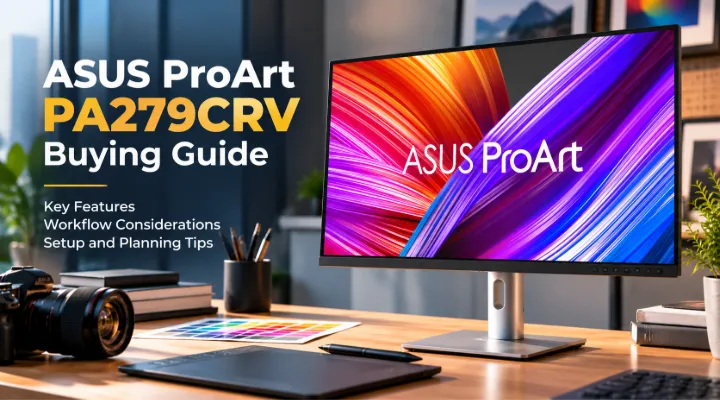
A creative team needs more from a monitor purchase than a larger screen. The display must fit the team's content, workstation connections and working environment. The ASUS ProArt PA279CRV, recently added to ICTECH's catalogue, is a model worth considering for that assessment. It combines a 27 inch display format with a professional colour oriented feature set, but those specifications still need to be connected to the way your team works. This guide explains the questions to ask before ordering one monitor or a complete studio deployment. It is a planning guide rather than a claim that we have independently measured the panel's accuracy or performance.
Establish the model's documented specification
ASUS lists a 27 inch IPS panel with 3840 by 2160 resolution and a maximum 60Hz refresh rate. Its specifications state 100% sRGB, 99% Adobe RGB and 99% DCI-P3 coverage, with colour accuracy described as Delta E below two. The display also includes USB-C with up to 96W Power Delivery and an adjustable stand. Those documented details provide a starting point for evaluation. Confirm the regional product package, supplied cables and warranty arrangement on the quotation. Keep manufacturer specifications separate from results your team measures in its own workspace, because a stated capability does not remove the need to set up the display appropriately.
Define the creative workflow first
Ask whether the users mainly produce web graphics, photography, video, layouts or other material. Identify the applications and expected output formats. A design team preparing online content may have a different colour workflow from staff preparing printed work or video deliverables. Record how work is reviewed and whether customers use a defined approval process. This helps the team decide which display features are relevant. A wide colour capability is useful context, but it should support a deliberate workflow rather than becoming a reason to use every available mode. The purchase brief should describe what users need to see and evaluate consistently.
Assess 4K resolution at the working distance
The screen resolution can provide useful detail, but text size and application scaling matter during normal work. Test the intended operating system scaling level and ask users to open their common tools. Review panels, menus and documents at the actual desk distance. A display that looks impressive during a demonstration may still need adjustment to remain comfortable throughout the day. Consider how it works beside existing monitors with different pixel densities. The objective is a practical workspace where staff can read controls and inspect content comfortably, not simply a specification sheet with the highest resolution available within a budget.
Keep colour setup consistent across the team
Agree the display modes and application settings used for recurring tasks. Identify who will configure the monitors and how those settings will be documented. If the team uses calibration equipment or a managed colour process, confirm the planned arrangement with its responsible specialist. Do not assume factory settings remove the need to review the workspace. Different settings across desks can make internal comparisons confusing. A consistent process helps staff understand which viewing conditions they are using when assessing a file. This is particularly useful when several people edit or approve the same work before it goes to a customer or publishing destination.
Review the lighting environment
Look at where the monitor will sit and how room lighting changes during the working day. Identify reflections, bright windows and differences between desks. Ask users to assess the screen in the intended room rather than only in a demonstration space. Keep the viewing arrangement as consistent as practical for work that depends on visual judgement. Consider the position of the display relative to lights and other bright surfaces. Environmental planning does not replace product specifications, but it helps the team use them effectively. A well selected monitor can still produce an inconsistent working experience if every desk has a substantially different setup.
Check USB-C as a complete connection
If the team wants a single cable laptop arrangement, verify the laptop's supported video and charging capabilities. Compare the laptop's power requirement with the proposed connection and review the monitor documentation for setup conditions. Ask which supplied cable supports the intended arrangement. Test the specific laptop and monitor together, including normal workload, reconnection and sleep behaviour. Do not infer full docking capability merely from a USB-C connector. For a mixed fleet, keep a compatibility list by model. This makes the purchasing decision more reliable and helps the support team identify which combinations are approved for the studio's daily use.
Plan other display inputs and accessories
Identify desktops, laptops or other sources that will connect to the monitor. List their outputs and confirm suitable cables for the desired resolution. If users switch between systems, test that procedure during the pilot. Record any required adapters separately. Consider how USB peripherals will connect and which features of the display the team intends to use. Avoid adding accessories simply because the monitor supports an option. A complete connection plan gives purchasing an accurate bill of materials and makes desk installation easier. It also prevents an otherwise suitable monitor from waiting unused because an essential cable or adapter was assumed to be included.
Assess ergonomics with actual users
Ask staff to position the monitor using the stand adjustments available. Review height, distance and orientation with the desk and chair they normally use. Ensure the arrangement leaves enough room for input devices and other work materials. If the display will use an arm, confirm mounting compatibility and the arm's suitability for the monitor. Keep required mounting accessories in the quotation. A useful pilot considers the whole station rather than testing the display on a temporary table. Physical fit matters because a creative workstation is used for long sessions, and the team should be able to arrange it consistently without improvising unsafe or inconvenient supports.
Match expectations to the product category
Treat the PA279CRV as a monitor candidate for the defined workflow, not as an automatic answer for every display requirement. A team prioritising fast competitive gaming has different criteria from one reviewing photographs or layouts. Likewise, demanding video finishing may require a specialist assessment beyond a general feature description. Ask the responsible users to state their acceptance requirements. Keep any claims about quality connected to documented specifications or measured results. This produces a clearer comparison and avoids buying a product because a marketing label appears to cover an application whose requirements have not actually been checked.
Pilot a representative project
Use a real project file and the team's normal applications to assess the proposed setup. Ask users to inspect text, detailed images and the interface at their preferred scaling. Verify the selected colour workflow and compare the experience across the planned source devices. Check connections, sleep behaviour and physical positioning. Record findings rather than describing the monitor only as looking good. If several units will be deployed, use the pilot to create a standard setup sheet. That record supports consistent installation and gives the team a reference when a workstation is replaced or another staff member joins the creative department.
Request a workstation focused quotation
Send ICTECH the PA279CRV reference, quantity, workstation models, connection requirements and delivery destination. Include any mounting accessories or additional cables your team needs. Ask for the package contents and support arrangements to be confirmed. Review the proposed setup against your creative workflow before approving the order. The ASUS ProArt PA279CRV is most useful as a purchasing candidate when its documented features are combined with a clear plan for colour settings, desk layout and device compatibility. That approach gives your team a stronger basis for selecting a display it can use consistently and maintain across future workstation changes.
Keep approvals connected to output
Ask the creative team to document how a project moves from editing to approval. If a customer reviews work on another authorised viewing device or as a printed sample, explain that step in the workflow. The monitor is one viewing point within that process. Keep the agreed display settings and review method attached to the project instructions. This helps staff understand which judgments can be made at their desks and which require a separate approved output check before the work is released to its intended destination.
Frequently asked questions
What resolution and refresh rate does ASUS list for PA279CRV?
ASUS lists 3840 by 2160 resolution and a maximum 60Hz refresh rate. Assess those specifications against the creative workflow and workstation connections you intend to use.
Does factory colour setup remove the need for a managed workflow?
No. Choose appropriate display and application settings, consider the working environment and follow your team's calibration or review process where required.
Can the USB-C connection charge every laptop?
Check the laptop's charging support and power requirements. ASUS lists up to 96W Power Delivery, but the actual connection must be verified for the specific device.
What should a monitor pilot include?
Test normal project files, application scaling, colour settings, source connections, sleep behaviour and ergonomics at the intended desk. Record results against agreed requirements.
What details help ICTECH quote a creative monitor deployment?
Provide model, quantity, workstation connections, mounting needs, required cables and delivery country. Explain the main workflow so the complete setup can be reviewed.
Related products
Technical references
Request a quotation from ICTECH with your product requirements, quantity and delivery country.
